
Using the app
Displays and scaling
Windowed, fullscreen and multi-monitor sessions with readable scaling.
Select a connection, press ⌘E and open the Display tab. Choose one of:
- Windowed: the remote desktop in a normal Mac window. It resizes as you resize the window.
- Fullscreen: one display, edge to edge.
- Multiple displays: the session spans the monitors you pick.
Multiple displays
Choose Refresh to find the displays attached to your Mac, then click the monitors you want. If you select none, the session uses all displays. They are arranged the same way as on your Mac.
To choose the display Windows uses for its taskbar and Start menu, right-click a monitor and choose Make primary, or use the Primary display picker. The Primary badge shows which one is selected.
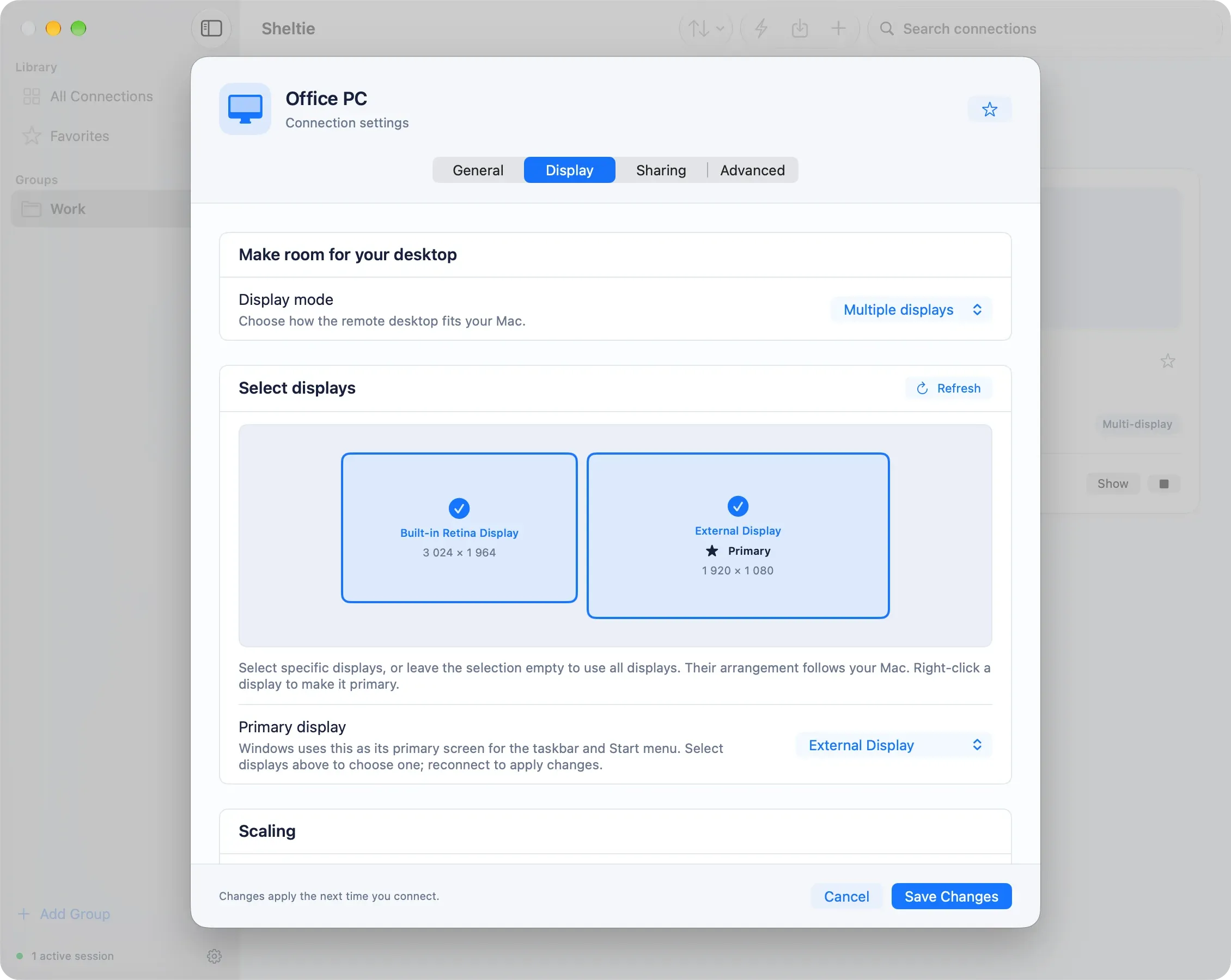
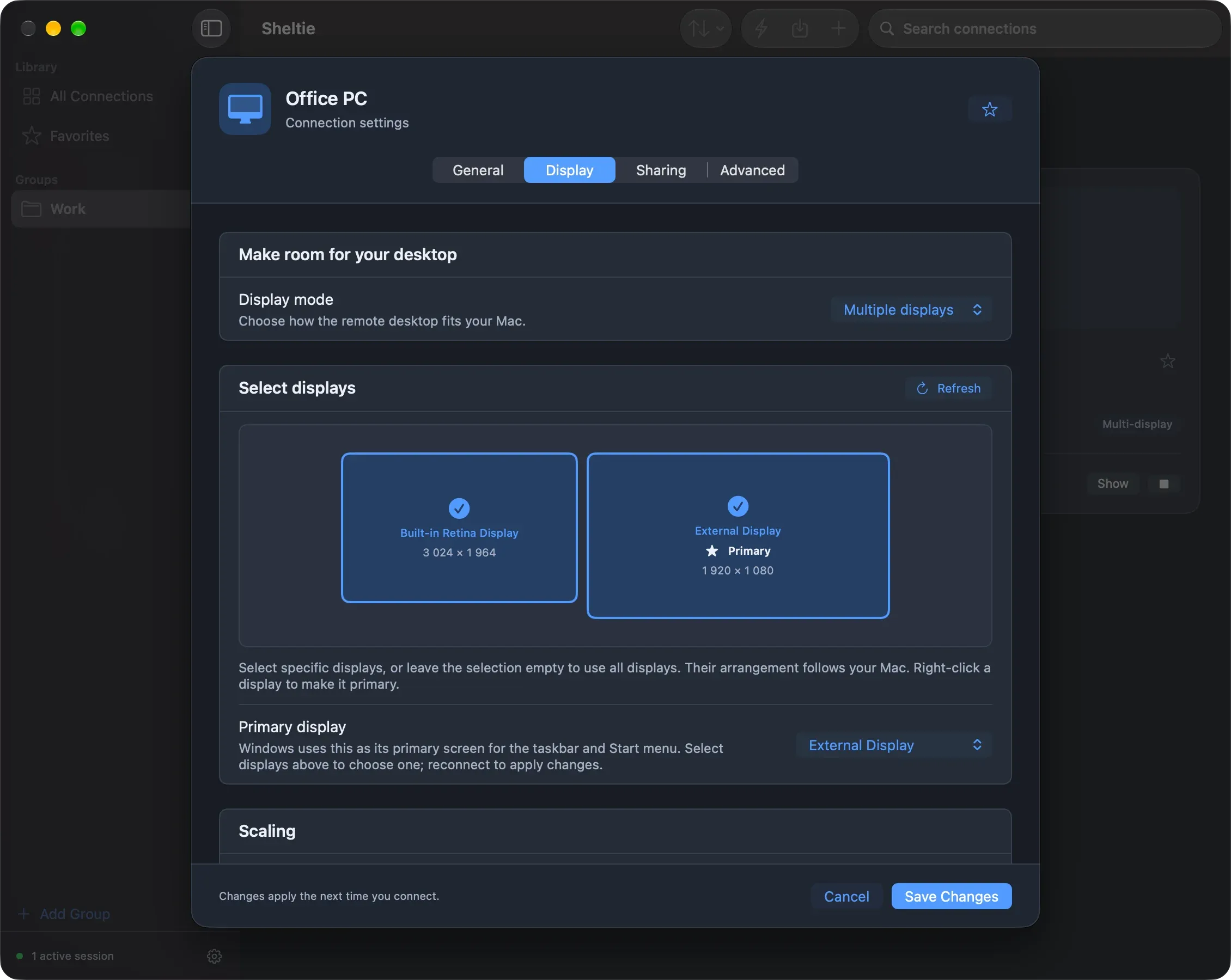
Saved monitors are checked against the displays attached right now. If one is missing, the editor asks you to pick a replacement.
Display discovery, Make primary and per-display scaling need the bundled enhanced engine (or another enhanced client). Reconnect after changing them.
Scaling
Scroll down to Scaling:
- Automatic desktop scale matches the Mac display, which is typically 200% on Retina. Start with this.
- If text is too small, increase Desktop scale.
- If a Retina screen sits next to an ordinary external monitor, turn on Set scaling for each display and leave each one on Automatic. Each screen then gets its own recommendation.
- Device scale is a separate value reported to Windows. Usually leave it at 100%.
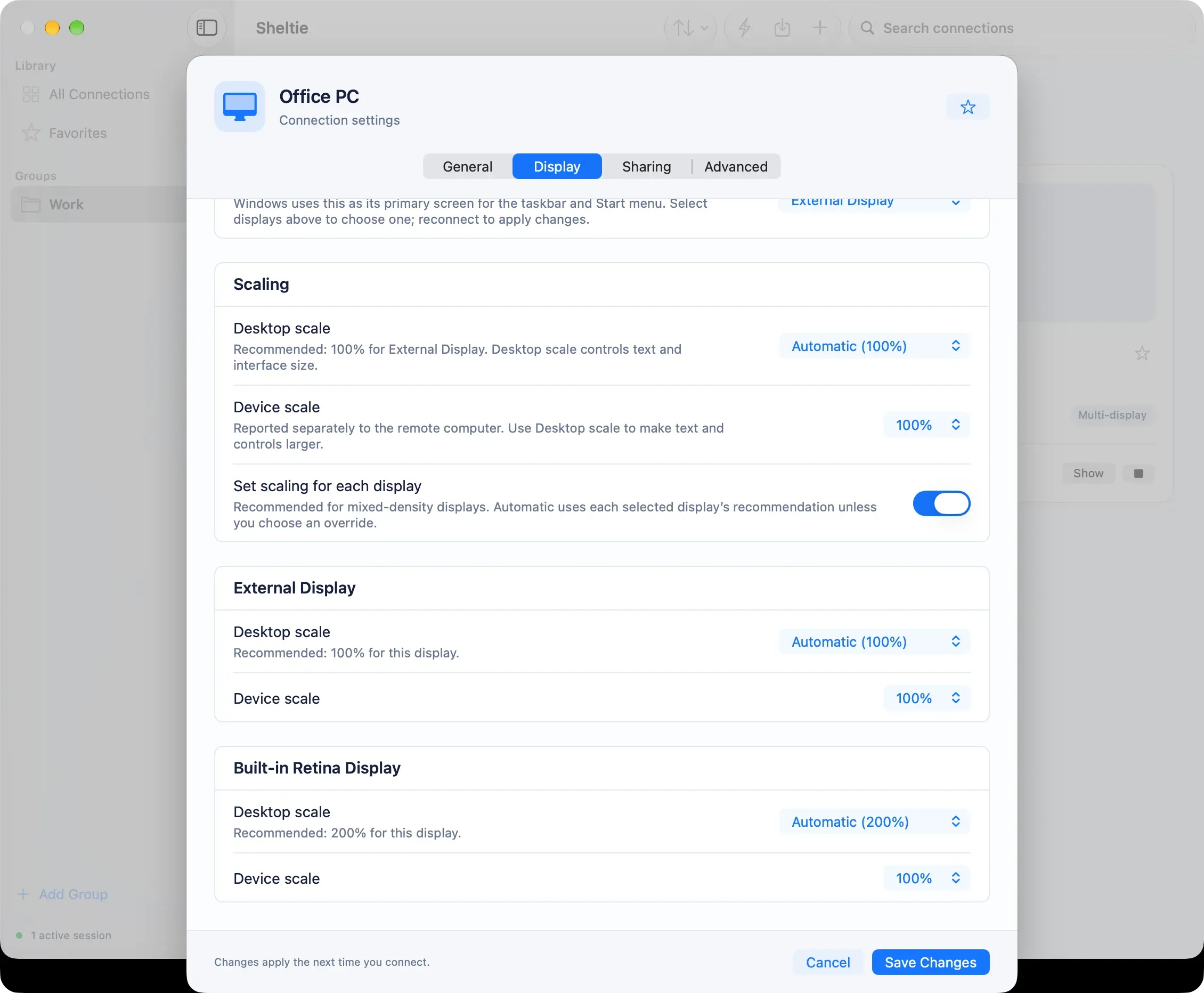
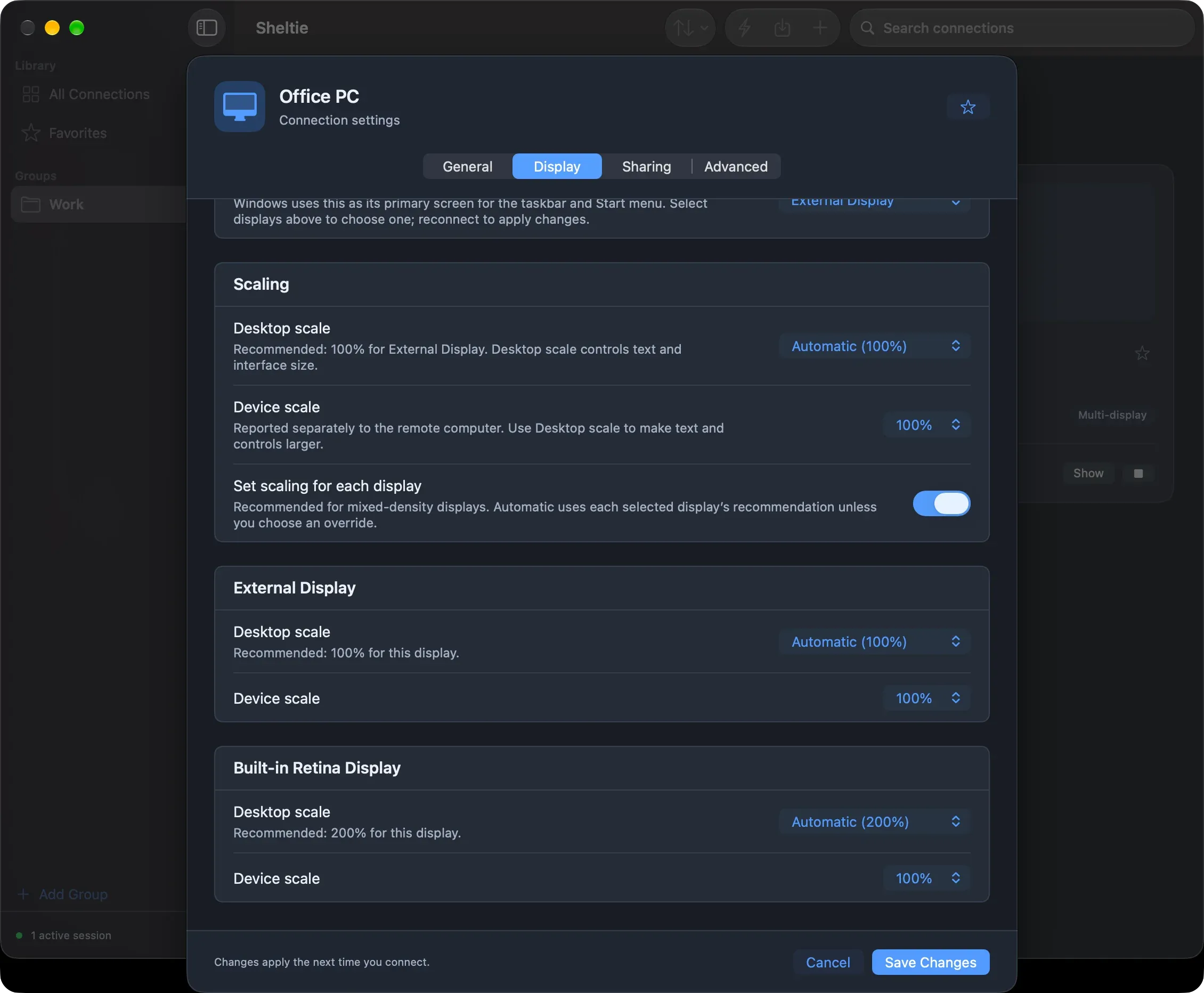
Choose Save Changes, then reconnect to apply the new settings.