
Using the app
Session scripts
Run your own script before a connection starts and after it ends.
A saved connection can run a script of yours before it connects and another after it disconnects. Use them to start a VPN or set up a route first, and to clean up afterwards.
Set it up
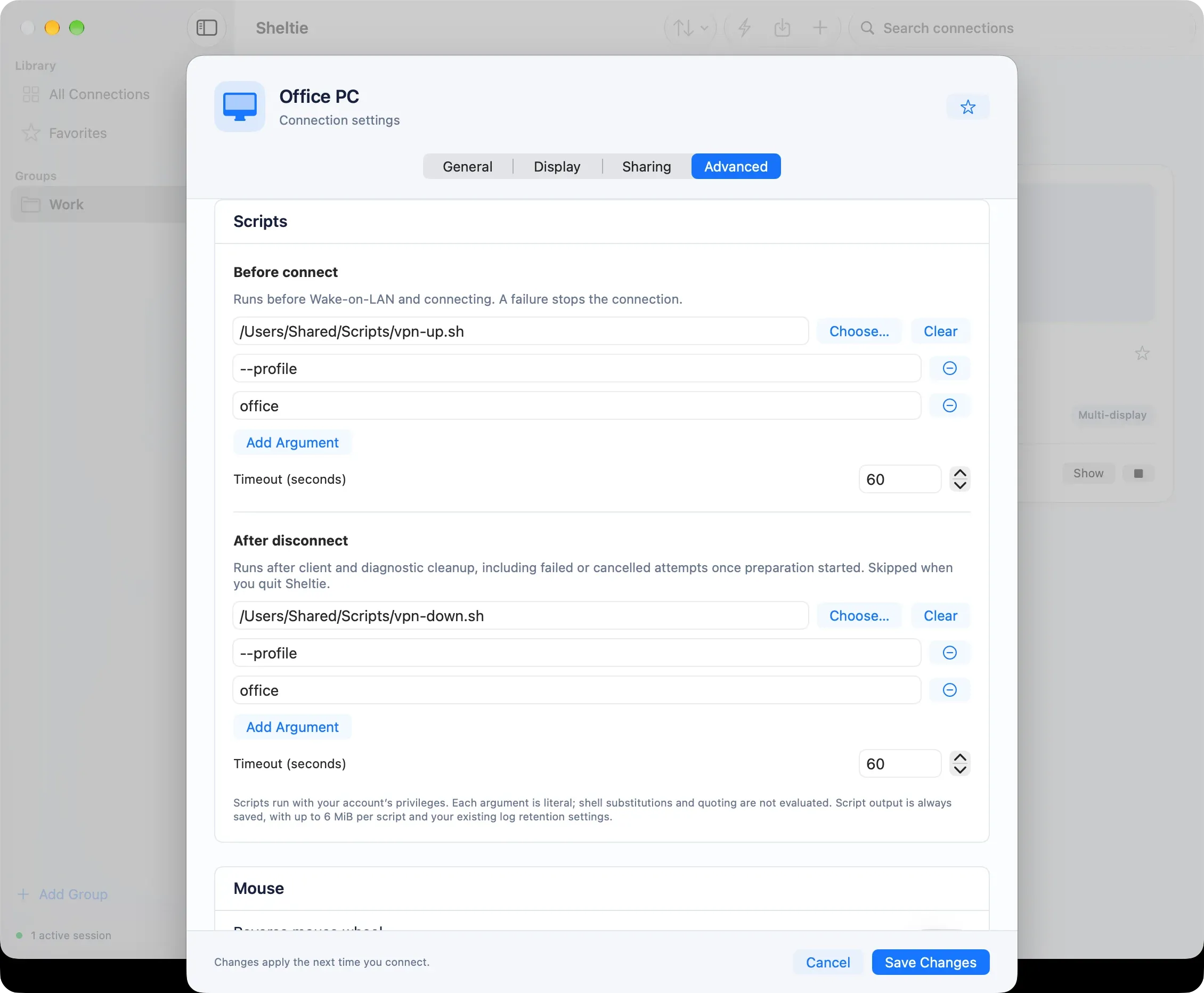
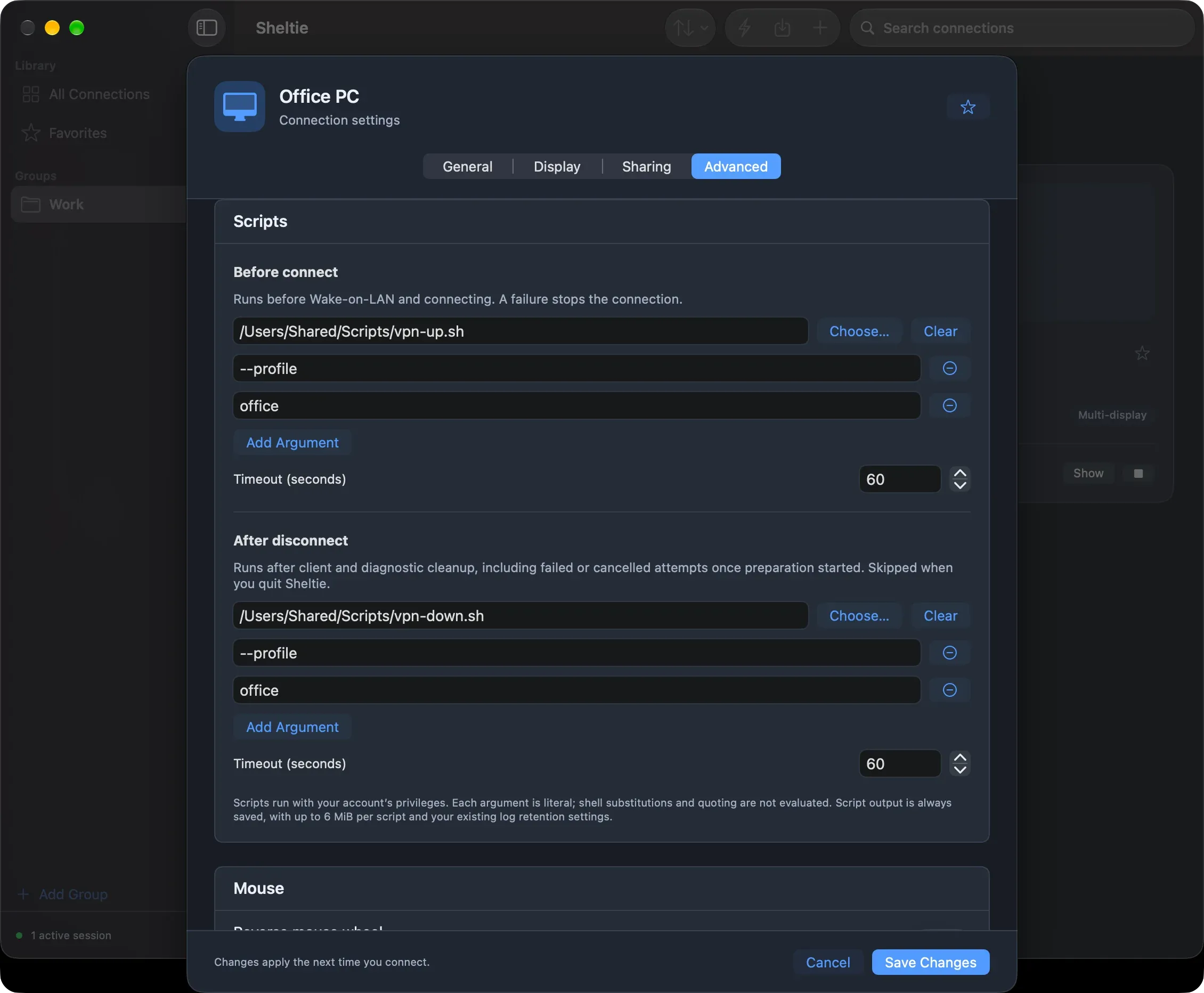
- Edit a saved connection and open Advanced → Scripts.
- Under Before connect, click Choose… and select your script. Click Add Argument for each argument it needs.
- Do the same under After disconnect if you want a script there too.
- Change Timeout (seconds) if needed: 1–300 seconds, 60 by default.
- Choose Save Changes.
Clear removes a script. Changes apply from the next connection.
When the scripts run
- Before connect runs first, before Wake-on-LAN and before connecting. It has to finish successfully, with exit code 0. If it fails or runs out of time, Sheltie doesn’t connect.
- After disconnect runs once when the session ends. It also runs after a failed or cancelled attempt, as long as the before-connect script or the connection had started. If it fails, Sheltie shows a warning, and the session’s result stays the same.
- While an after-disconnect script runs, Cancel Script stops it.
- Automatic reconnects during a session don’t run the scripts again. Reconnect waits for the after-disconnect script, then starts over with before connect.
- When you quit Sheltie, after-disconnect scripts are skipped and running scripts are stopped.
- A script that runs out of time is stopped. If it doesn’t exit within 10 seconds, it’s force-quit.
Writing a script
- The script must be an executable file you own, starting with a line such as
#!/bin/sh. Runchmod 700on it. - Keep scripts in a folder only you can write to, such as a
Scriptsfolder in your home folder. Sheltie refuses scripts that other users could change. - Each argument is passed exactly as typed. There is no shell, so variables,
~, quotes and wildcards aren’t expanded. To use the connection’s details, read the environment variables below. - The script starts in the session’s own output folder and gets no input.
- Don’t start background processes that keep running after the script exits. Sheltie stops what it can when the script ends.
- Scripts run with your account’s privileges. Sheltie checks them before running, but it doesn’t sandbox them.
Environment variables
Scripts get a small, fixed environment with the usual PATH, including Homebrew’s folders, and these variables:
| Variable | Contains |
|---|---|
SHELTIE_HOOK |
pre_connect or post_disconnect |
SHELTIE_OUTCOME |
After disconnect only: ended, cancelled or failed |
SHELTIE_HOST |
The computer’s host name or IP address |
SHELTIE_PORT |
The port, for example 3389 |
SHELTIE_PROFILE_NAME |
The connection’s name. Don’t use it as a file name without cleaning it up first. |
SHELTIE_TRANSPORT |
auto or tcp |
SHELTIE_SESSION_ID |
A unique ID for this connection attempt, shared by both scripts |
SHELTIE_OUTPUT_DIR |
A private folder where the script can write its own files |
Passwords, Keychain items and other connection settings are never passed to scripts.
Example
A before-connect script that waits until a VPN can reach the computer:
#!/bin/sh
set -eu
echo "Waiting for $SHELTIE_HOST:$SHELTIE_PORT"
for i in 1 2 3 4 5 6 7 8 9 10; do
  nc -z -G 2 "$SHELTIE_HOST" "$SHELTIE_PORT" && exit 0
  sleep 3
done
echo "Not reachable" >&2
exit 1
Script output
Everything a script prints is saved, even when session logging is turned off. Each script keeps up to 6 MiB: the first 2 MiB and the newest 4 MiB. Open the files with Settings → Logging → Open Logs Folder. Old files are deleted with your log settings. Sheltie doesn’t remove anything from the output, so avoid printing secrets.
Limits
- Scripts belong to saved connections. Quick Connect, the default template and imported
.rdpfiles don’t have them. Duplicating a connection copies its scripts. - A script that starts background processes that leave its process group may keep them running after Sheltie is done.