
Start here
Getting started
Install Sheltie, add your first computer and connect.
Sheltie manages your remote desktop connections on the Mac. It keeps saved connections, display setup, sign-in prompts and reconnect controls in one place, while FreeRDP draws the remote desktop windows.
1. Install
- Download the latest DMG. It needs an Apple silicon Mac running macOS 26 or newer.
- Open the DMG and drag Sheltie.app onto Applications.
- Open the app from Applications. Beta builds are not notarized yet, so if macOS blocks the app, try to open it, then go to System Settings → Privacy & Security and choose Open Anyway.
The download includes an enhanced FreeRDP engine and all its libraries. You don’t need Homebrew or a separate FreeRDP install.
2. Add a computer
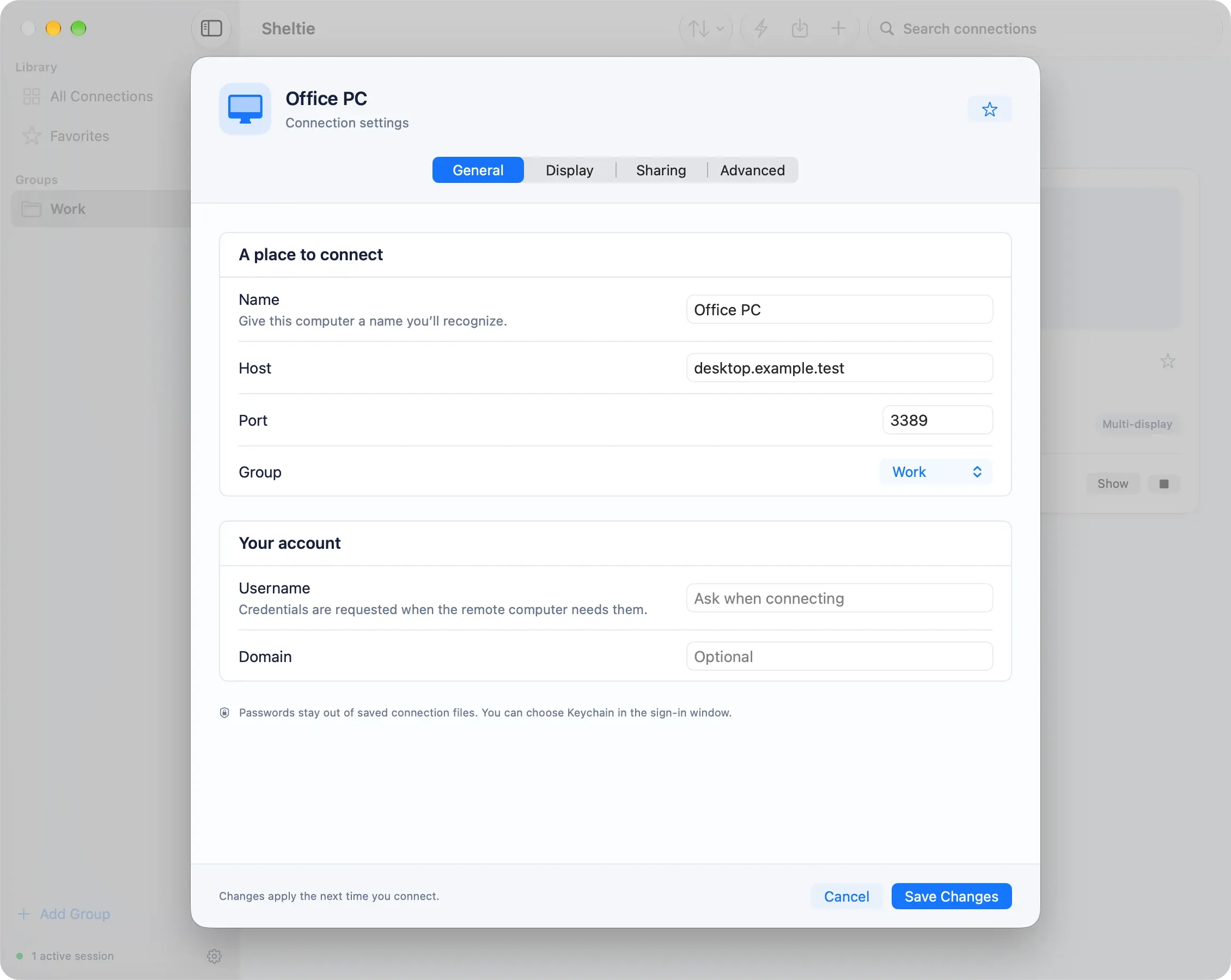
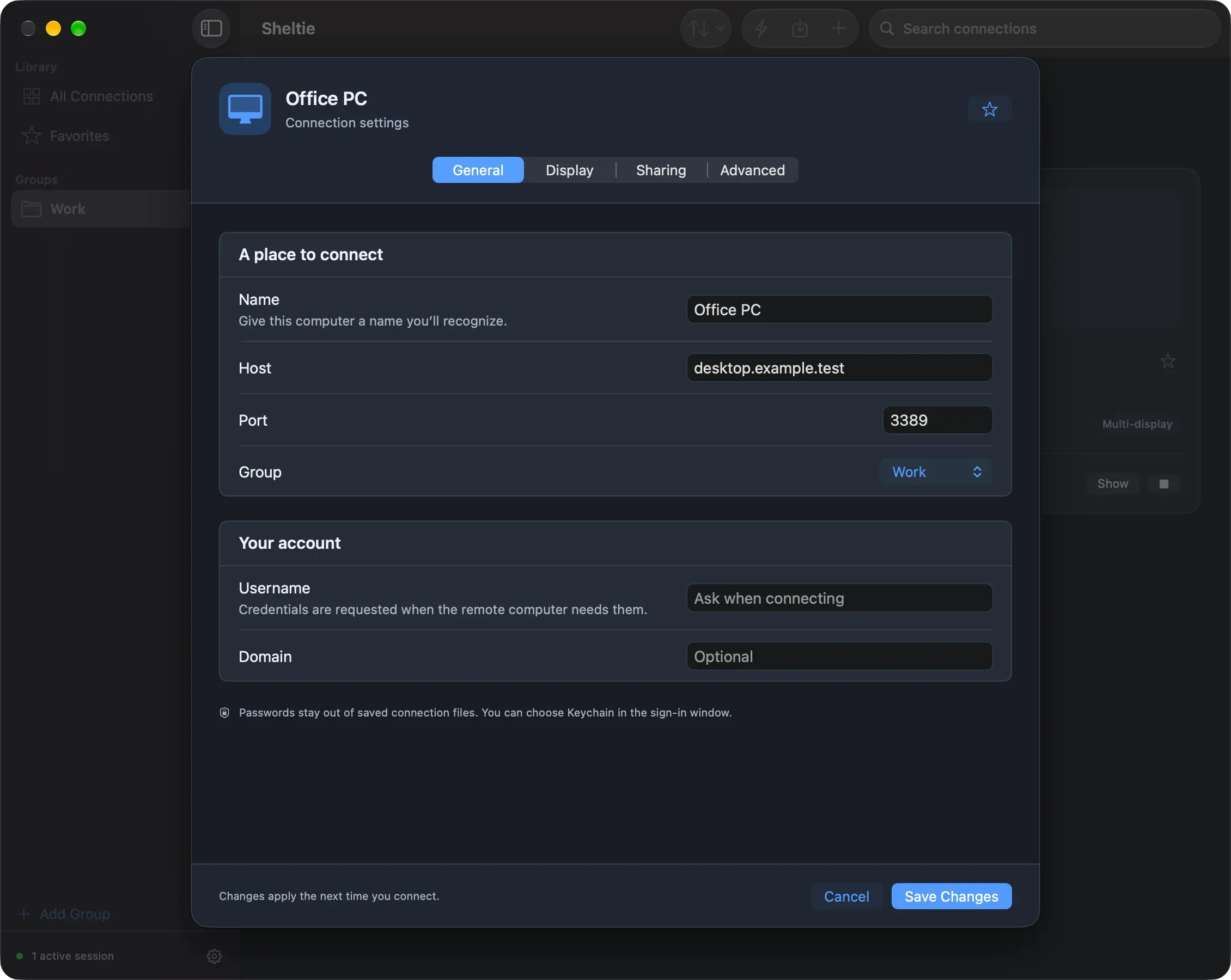
Choose + in the toolbar or press ⌘N. In General, enter:
- a name you’ll recognize,
- the hostname or IP address,
- the port, normally
3389.
Username and domain are optional. If you leave them blank, Sheltie asks when you connect. You can also choose a group or mark the connection as a favorite. Then choose Add Connection.
3. Connect
Choose Connect on the connection’s card, or select it and press ⌘Return. When Windows asks for credentials, Sheltie shows a native sign-in window. Tick Save in Keychain to remember the password after a successful connection. The saved connection file never contains your password.
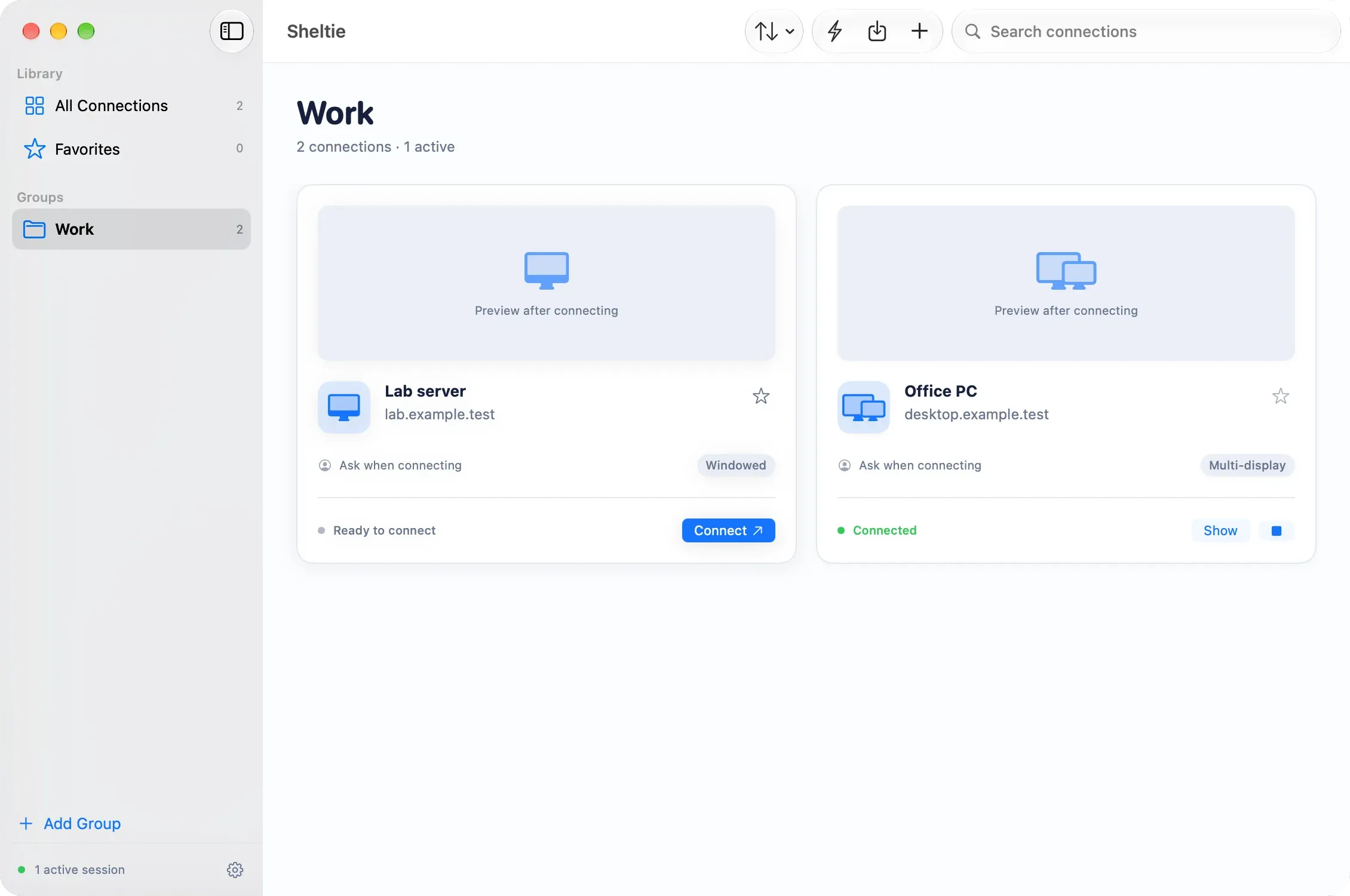
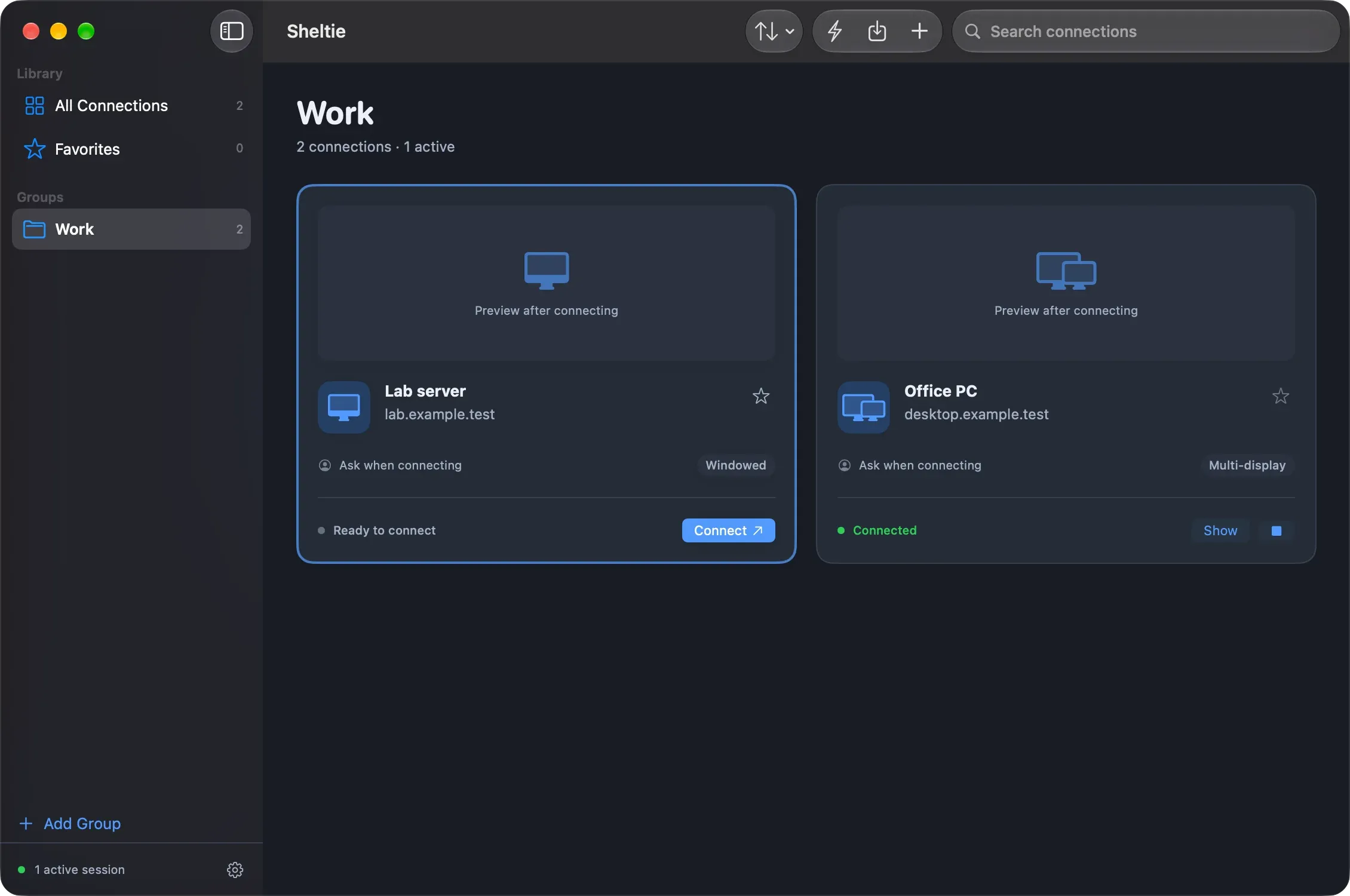
While a session is running, Show brings its window to the front and Disconnect ends it. Closing the manager window leaves sessions running.
Next steps
- Use Quick Connect for one-off sessions.
- Set up multiple displays and scaling.
- Import
.rdpfiles you already have.