
Using the app
Quick Connect
Connect to any address without saving it to your library.
Quick Connect opens a temporary session without adding anything to your library.
Start a quick session
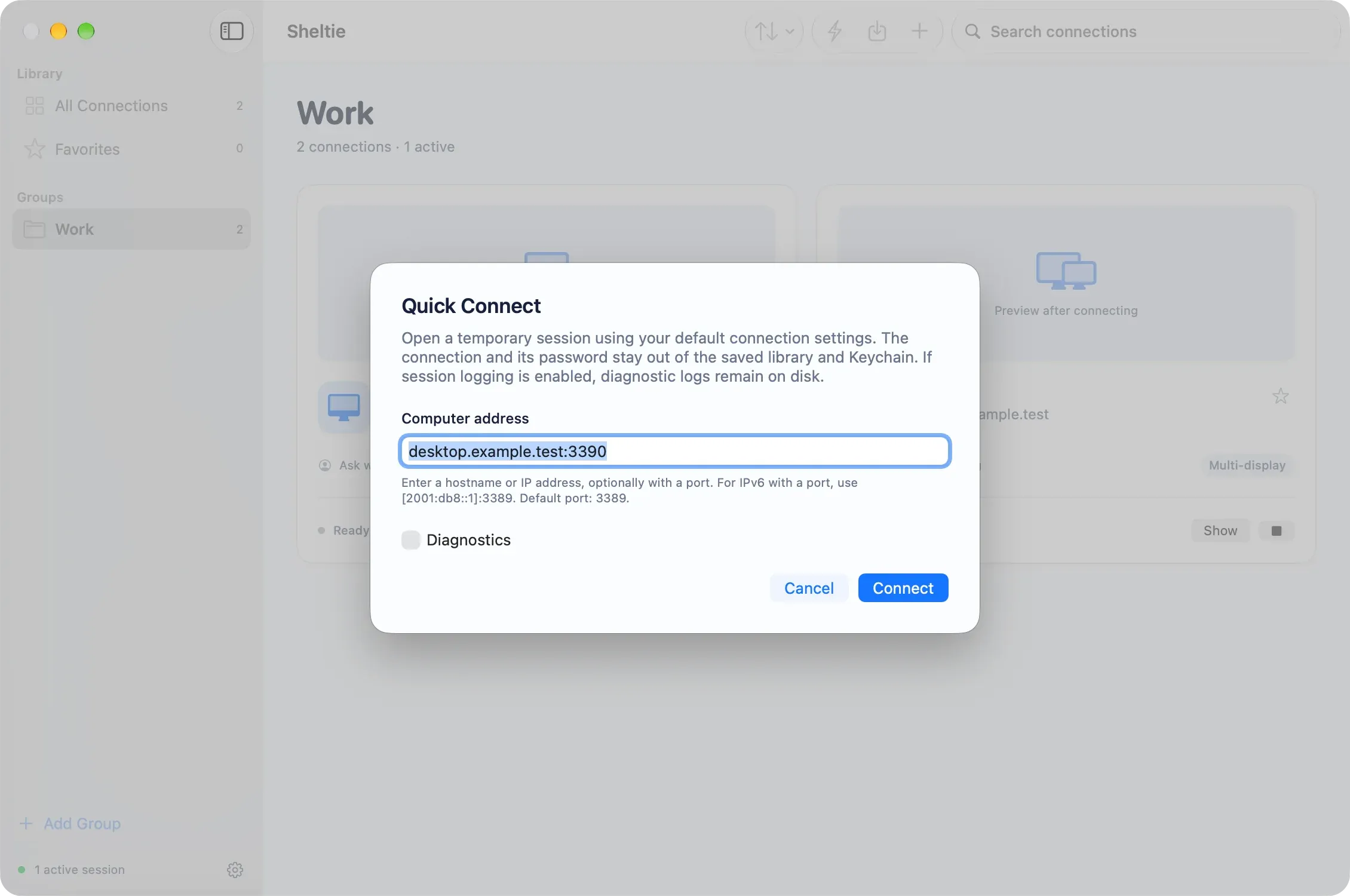
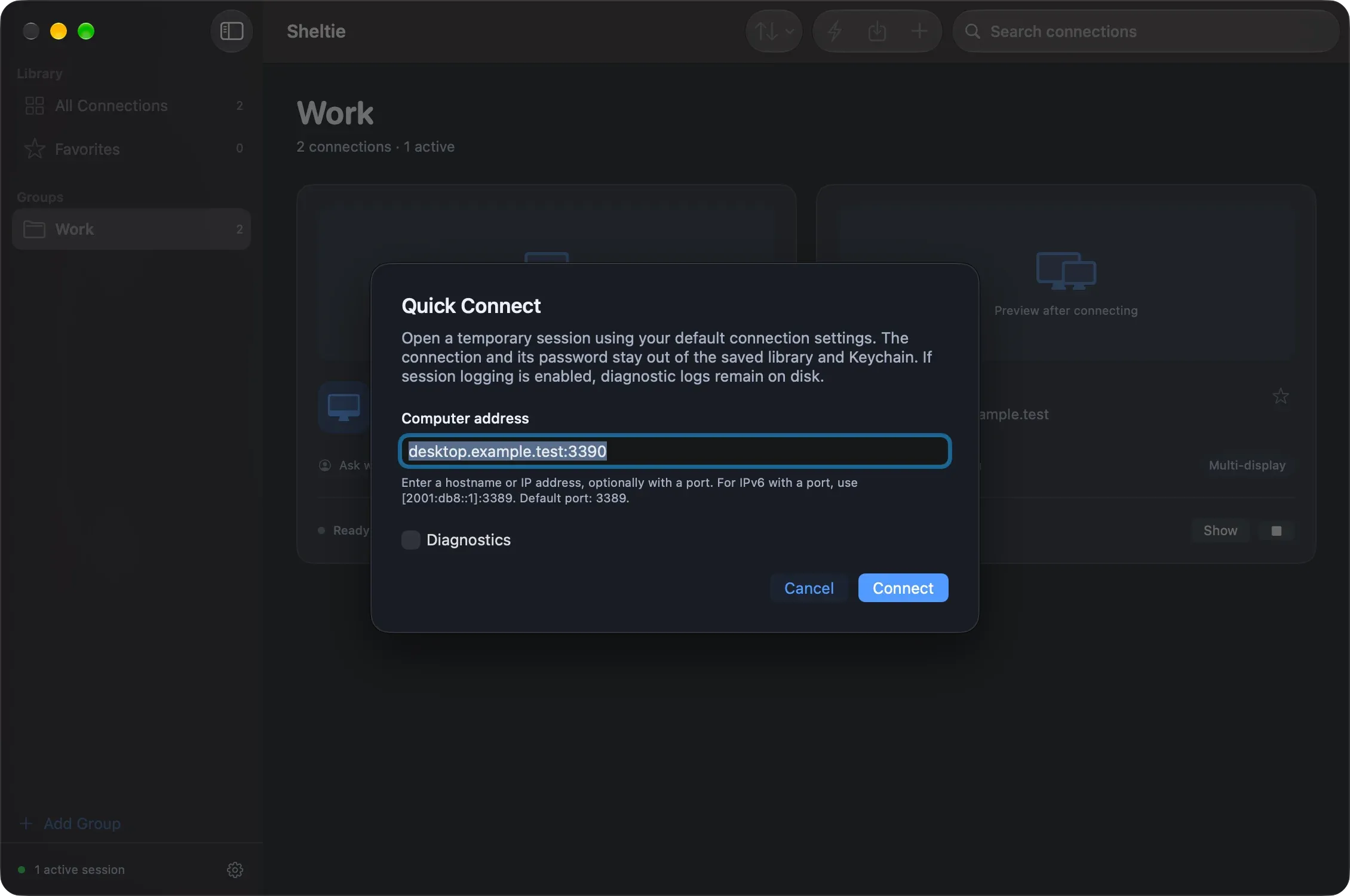
Choose Quick Connect in the toolbar, or File → Quick Connect… (⌘K). Enter a hostname or IP address, with an optional port:
| You type | Connects to |
|---|---|
desktop.example.test |
port from your default template (usually 3389) |
desktop.example.test:3390 |
port 3390 |
[2001:db8::1]:3390 |
IPv6 address on port 3390 |
2001:db8::1 |
IPv6 address, template port |
The session uses your default template.
Temporary sessions
Quick sessions are listed separately from saved connections. You can show, disconnect, reconnect or remove them there. They last until you quit the app.
- The connection and its password are not saved to the library or Keychain.
- Credentials are kept in memory so you can reconnect, and are cleared when you remove the session or quit.
- Reconnect reuses that session’s settings, even if you’ve changed the template since.
Save it for later
After you disconnect a quick session that connected successfully, Sheltie asks Do you want to save this connection? Choose Save Connection… to open the editor with the address and settings already filled in. Give it a name and a group, and add it to your library. The password is never saved from Quick Connect.
If session logging is enabled, logs from quick sessions stay on disk like any other session logs.