
Using the app
Importing and exporting .rdp files
Turn Windows Remote Desktop files into Sheltie connections, and share connections as .rdp files.
Import a file
Choose File → Import RDP File… (⇧⌘I) and select a .rdp file. The connection editor opens with the supported settings filled in. Nothing connects until you choose to.
Review the draft
If some options were skipped or changed, a warning appears over the editor. Dismiss it to check the settings and the import notes, then choose Add Connection. Cancel leaves your saved connections unchanged.


What is imported
- Host, port, username and domain
- Display settings
- Clipboard and audio
- Reconnect settings
Anything missing from the file uses your default template.
What is skipped
- Passwords, certificate overrides and shared-drive paths.
- Windows monitor IDs, which only mean something on the original computer. Pick this Mac’s displays in the Display tab instead.
- RD Gateway, RemoteApp, broker/workspace routing and enterprise sign-in. These are skipped with a note, and the rest of the file is still imported as a direct desktop connection. You may need to adjust it before it can connect.
File details
- UTF-8 and UTF-16 files are supported, up to 1 MB.
- If a property appears more than once, the last one wins.
- An alternate address takes priority over the full address, and an explicit server port overrides one embedded in the address. The import notes point out these overrides.
- “Unlimited” reconnect attempts become Sheltie’s default of five, with a note. You can change the limit before saving.
Export a connection
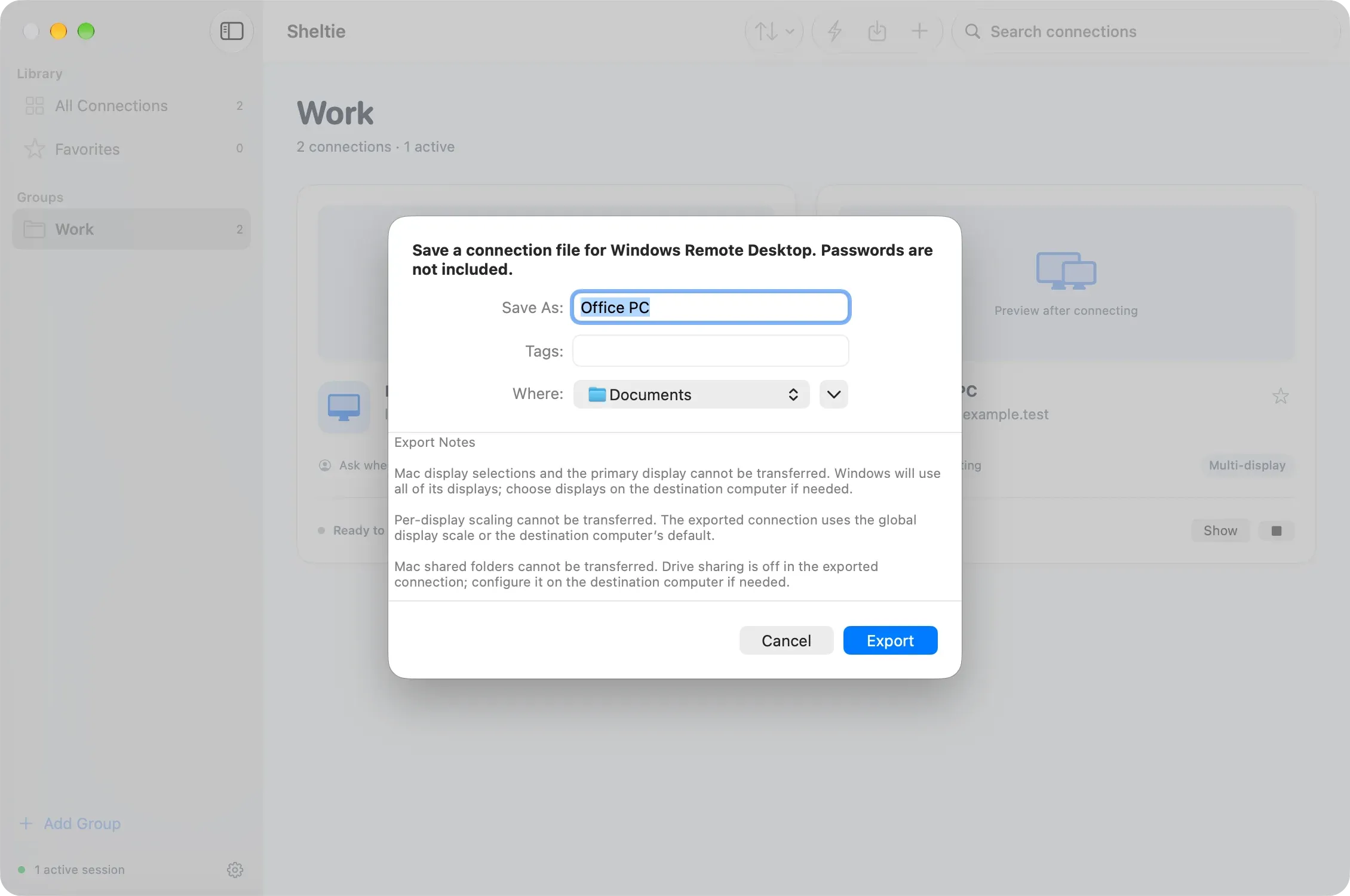
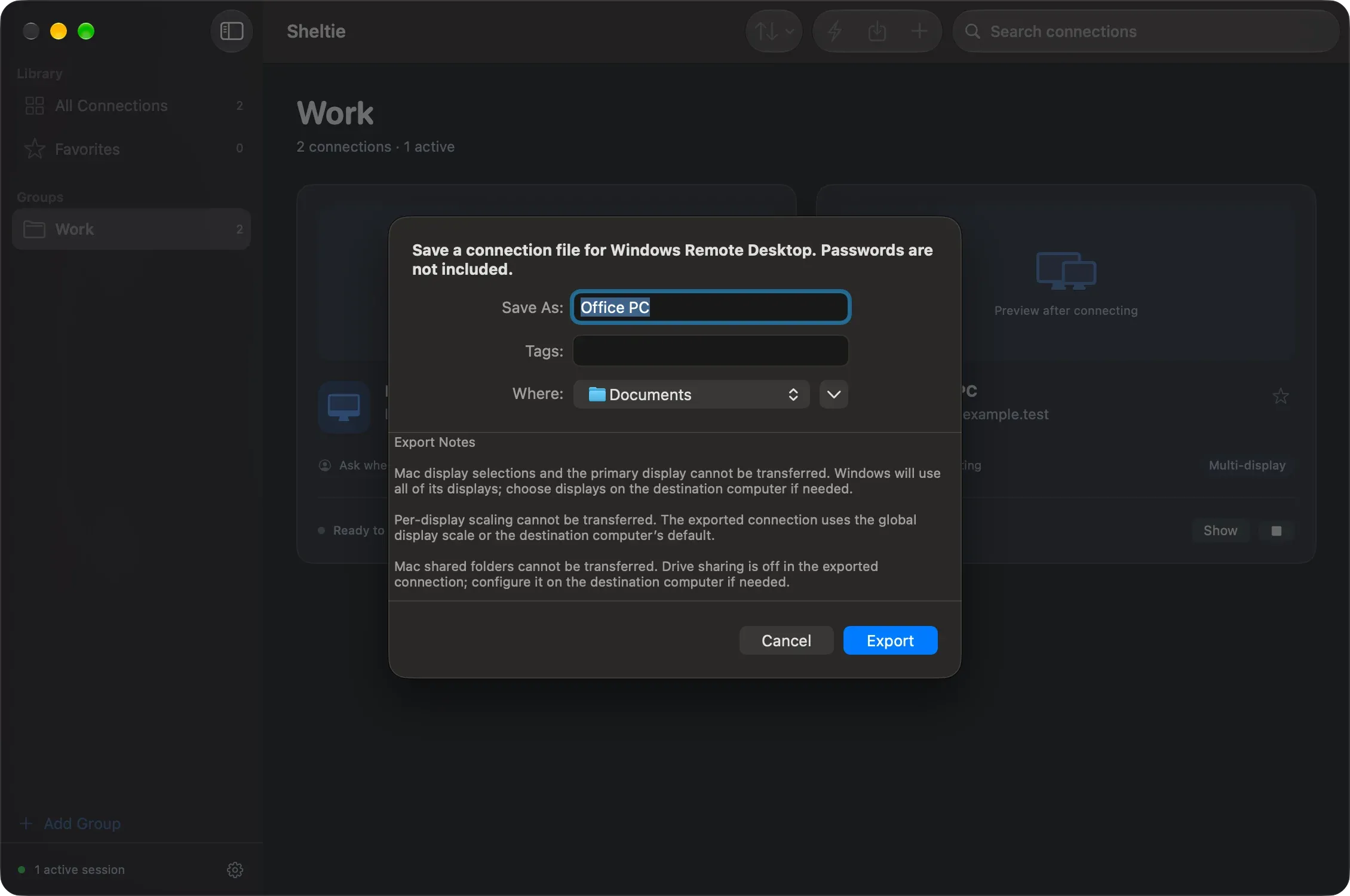
Select a saved connection and choose File → Export RDP File… (⌥⌘E), or choose Export RDP File… from its context menu. Pick a name and location, and save. If some settings can’t be transferred, export notes explain them before you save. Exporting doesn’t change the connection or start a session.
What is exported
- Host, port, username and domain
- Display mode and size, manual scaling and dynamic resolution
- Clipboard, audio and automatic reconnect settings
What stays behind
- Passwords and Keychain credentials are never included. Windows asks for them as usual.
- Mac-specific display choices: which Mac displays are selected, the primary display and per-display scaling. Multiple-display connections use all displays on Windows, and automatic scaling uses the other computer’s defaults.
- Shared folders, advanced FreeRDP options, Wake-on-LAN and custom transport or timeout settings are left out, with a note where they apply.
- Drive, printer, serial port, smart card and microphone redirection are turned off in the file. Set up sharing on the other computer if you need it.
Exported files use Windows’ own format (UTF-16 with CRLF line endings), so Windows opens them directly.