
Using the app
Performance statistics
Live frame rate, latency and traffic for a session, as an overlay or in a detailed window.
When a session feels slow, Sheltie can show what it is doing: frame rate, round-trip time, traffic and more. That helps you tell a slow network from a busy remote computer.
Show the statistics
Select a connected session, then use the Connection menu:
- Show Performance Stats puts a small overlay on the remote desktop. Choose Hide Performance Stats to remove it.
- Performance Overlay Style switches the overlay between Panel and Quake (text only).
- Performance Details… opens a window with every measurement.
The same commands are in the right-click menu of a connected session’s card. Measuring starts when you open the overlay or the window, and it doesn’t reconnect the session.
The overlay
Panel, the default, shows the numbers in a small box. Quake (text only) shows compact white text with an outline and no background, so it covers less of the desktop. The overlay appears on every display of the session, and you can drag it out of the way. Switching styles keeps the measurements collected so far.
Performance Details
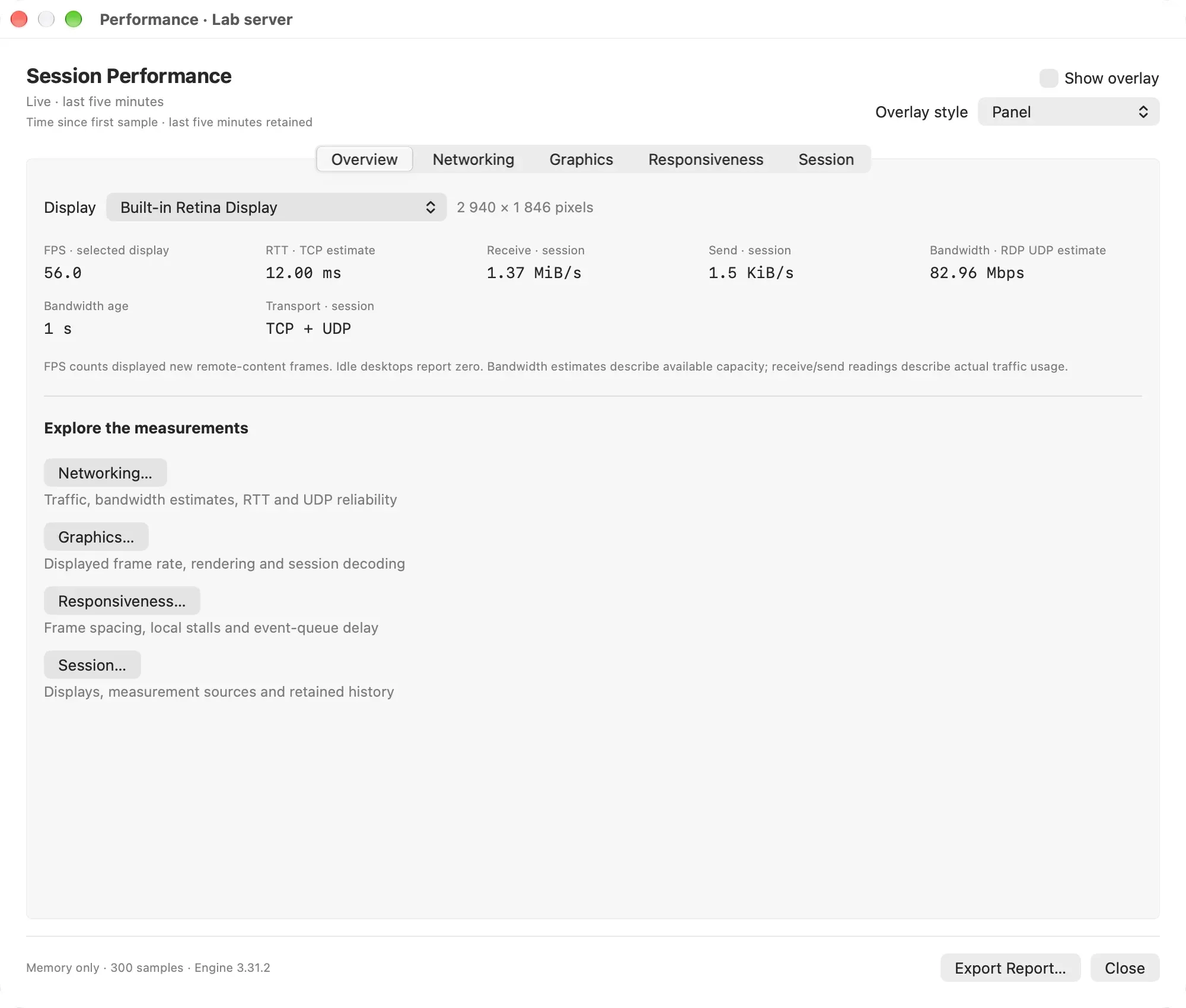
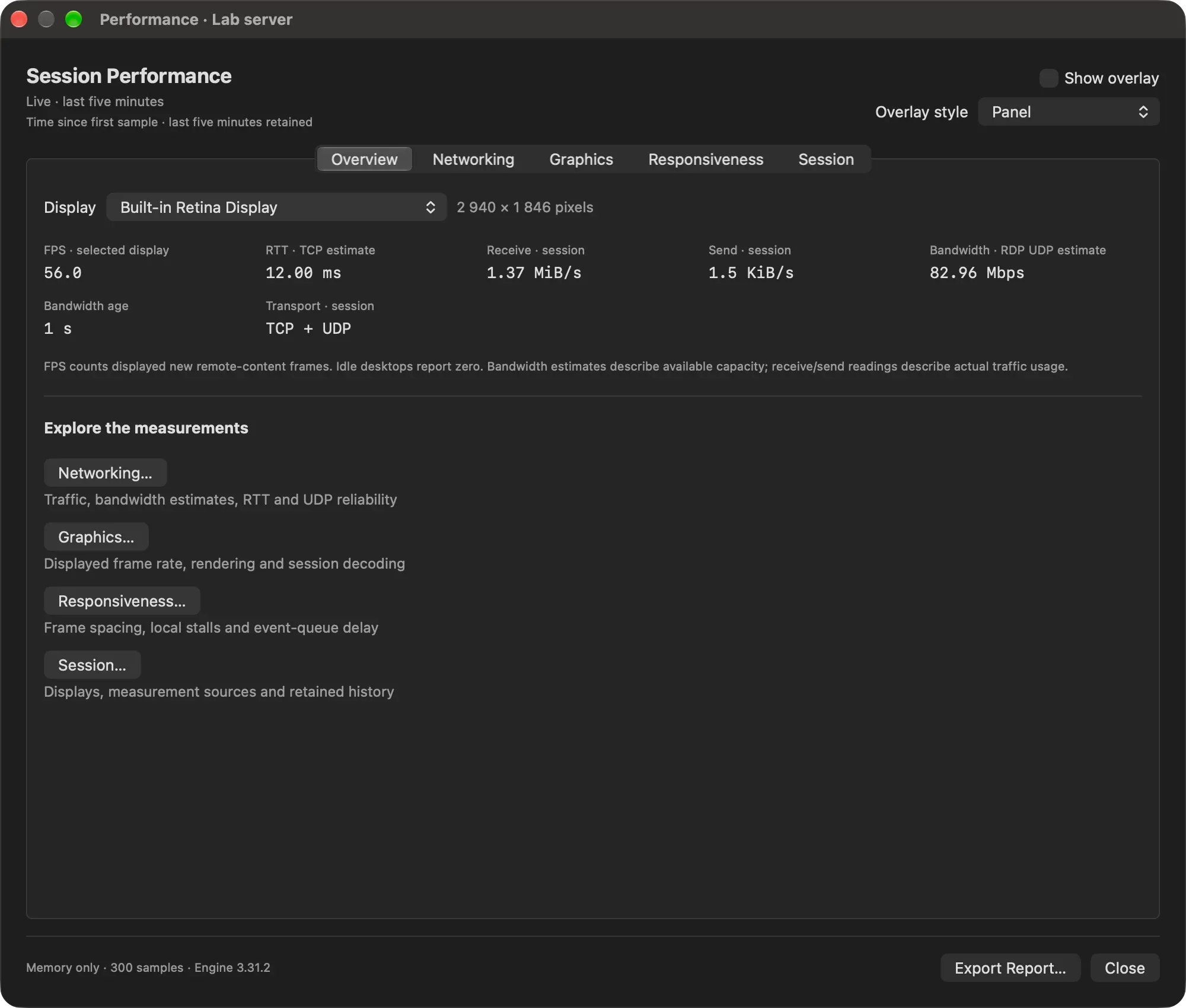
The window has five tabs:
| Tab | What it shows |
|---|---|
| Overview | Frame rate, round-trip time, received and sent traffic, estimated bandwidth and the transport in use. Links open the other tabs. |
| Networking | Traffic charts with a TCP and UDP breakdown, bandwidth and round-trip time over time, and UDP reliability. |
| Graphics | Frame rate history, resolution, and how long rendering and decoding take. |
| Responsiveness | Frame spacing, local stalls and event-queue delay. |
| Session | The engine, measurement status, transport, overlay style, retained history and displays. |
In a multi-monitor session, choose the display in the Display menu on Overview, Graphics and Responsiveness. Show overlay and Overlay style at the top of the window control the overlay.
Reading the numbers
- FPS counts new frames from the remote computer. A desktop where nothing changes shows 0, which is normal.
- Bandwidth is an estimate of the capacity available. Receive and Send show the traffic actually used.
- UDP loss reports can include packets that only arrived out of order, so they aren’t an exact packet-loss percentage.
History and reports
- Sheltie keeps the last five minutes of measurements for each session, in memory only. Charts start at 0 s when measuring starts.
- Closing the overlay and the window pauses measuring and keeps the history. Disconnecting freezes it. A new Connect or Reconnect starts again from zero.
- Nothing is saved automatically. Export Report… saves all retained measurements as a JSON file you can keep or share. Reports don’t contain passwords, TLS keys, screenshots or session logs.
Requirements
Performance statistics need the bundled enhanced engine, which Sheltie uses by default. With a standard FreeRDP client, the commands aren’t available. See FreeRDP client.