
Using the app
Wake-on-LAN
Wake a sleeping PC before connecting.
Sheltie can wake a sleeping computer, wait for it to be ready, and then connect.
Set it up
- Edit a saved connection and open Advanced → Wake-on-LAN.
- Turn on Wake before connecting.
- Enter the remote network adapter’s MAC address.
- If needed, set your network’s Broadcast address (for example
192.168.1.255). The default is255.255.255.255. - Save.
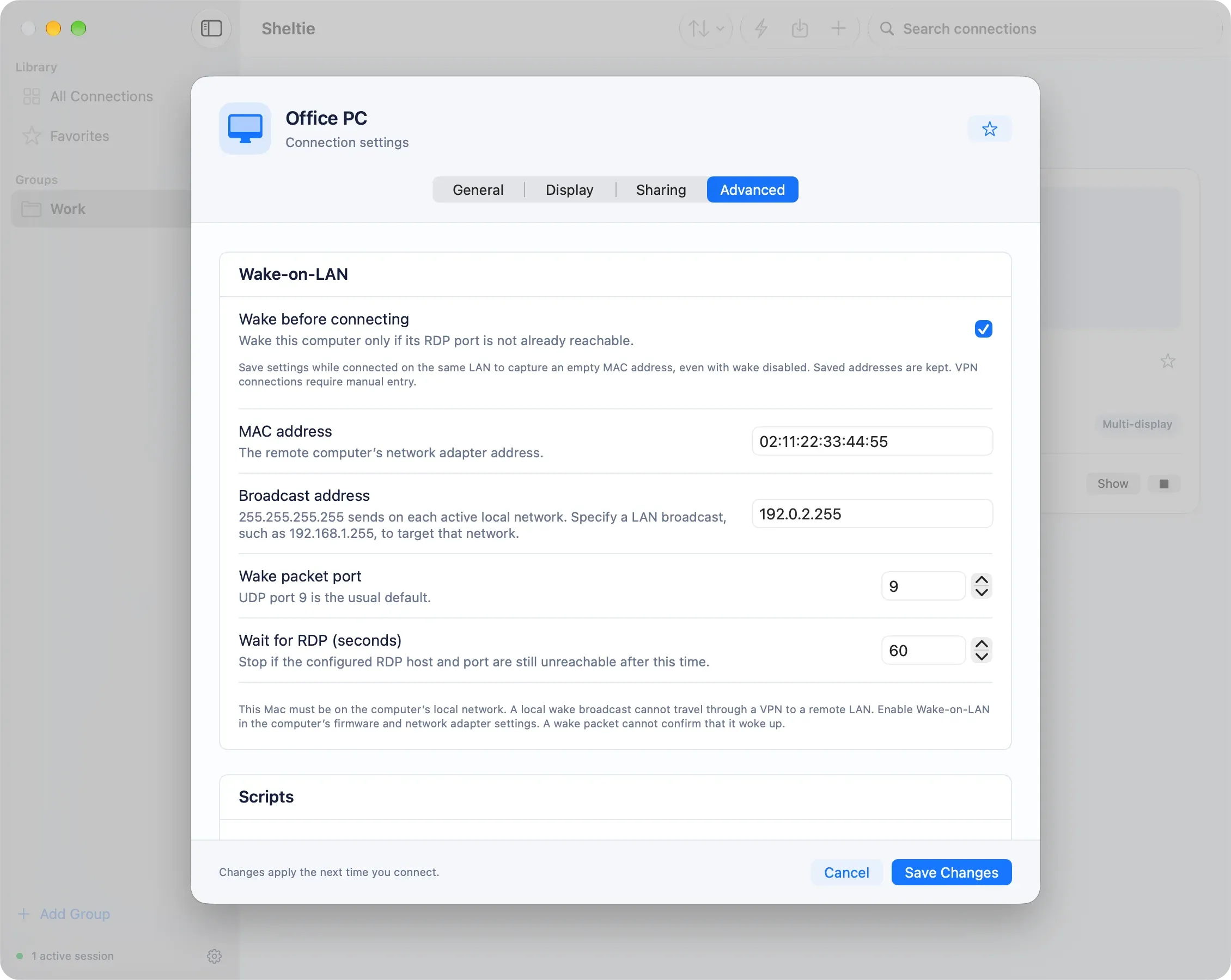
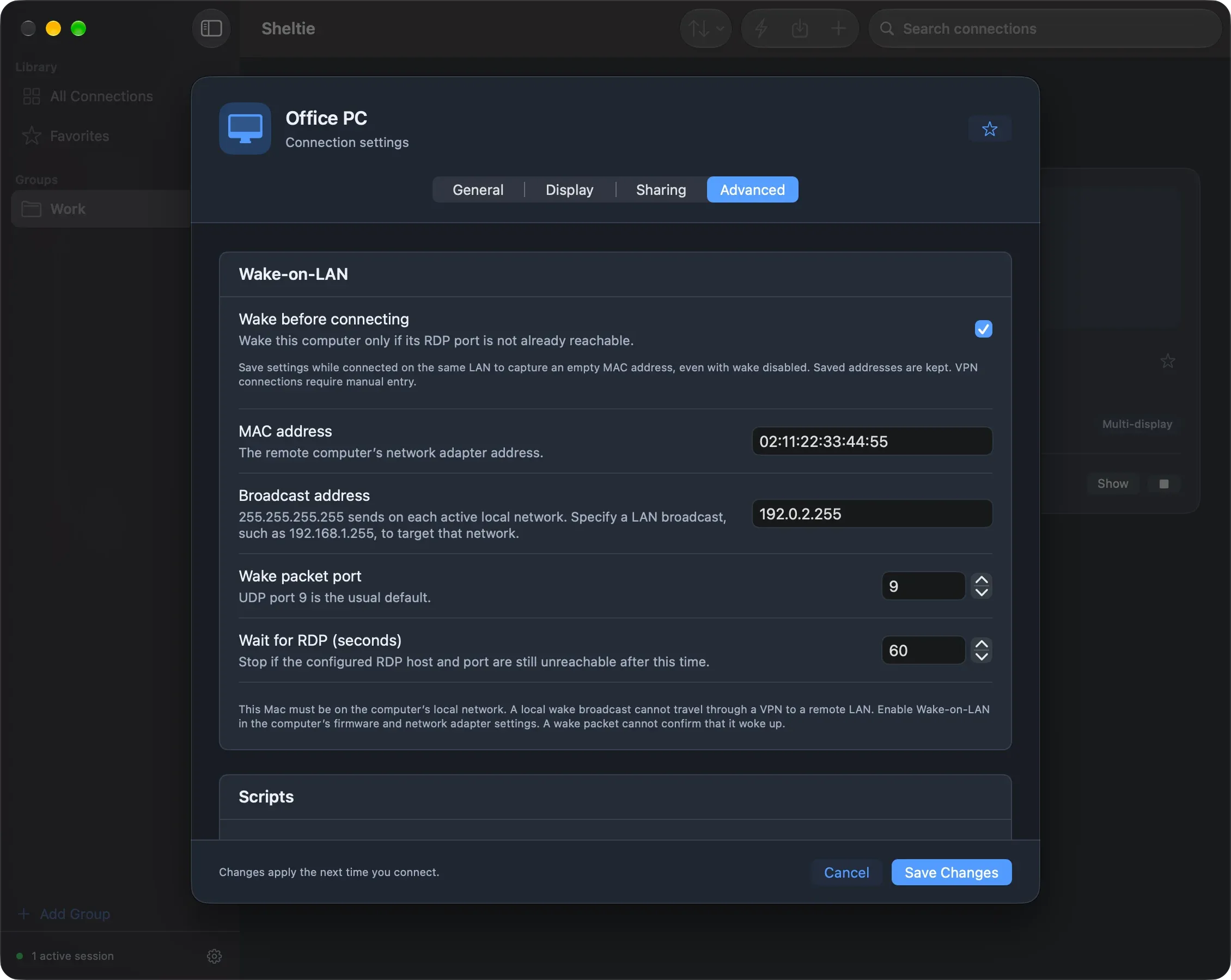
When you choose Connect, Sheltie sends a magic packet to UDP port 9. It then waits up to 60 seconds for the RDP port to accept connections before starting the session. You can change the port and the wait time (1–300 seconds). Cancel stops the wait.
Finding the MAC address
Connect directly to the computer on the same IPv4 network. Then edit the connection and choose Save Changes with the MAC field empty. Sheltie fills in the address from the local network, even if wake is turned off. Keep the host and port the same as the open session. Addresses you entered yourself are never overwritten.
Requirements and limits
- Your Mac must be on the same local network as the target. Wake packets can’t travel through Tailscale or another VPN, and there is no remote wake relay yet.
- Wake-on-LAN must be enabled in the target’s firmware and network adapter.
- If macOS asks for Local Network access, allow it and try again. You can change this later in System Settings → Privacy & Security → Local Network.
- Wake settings belong to each connection and aren’t used by Quick Connect or the default template.