
Using the app
Sign-in and security
How credentials, Keychain and certificates are handled.
Signing in
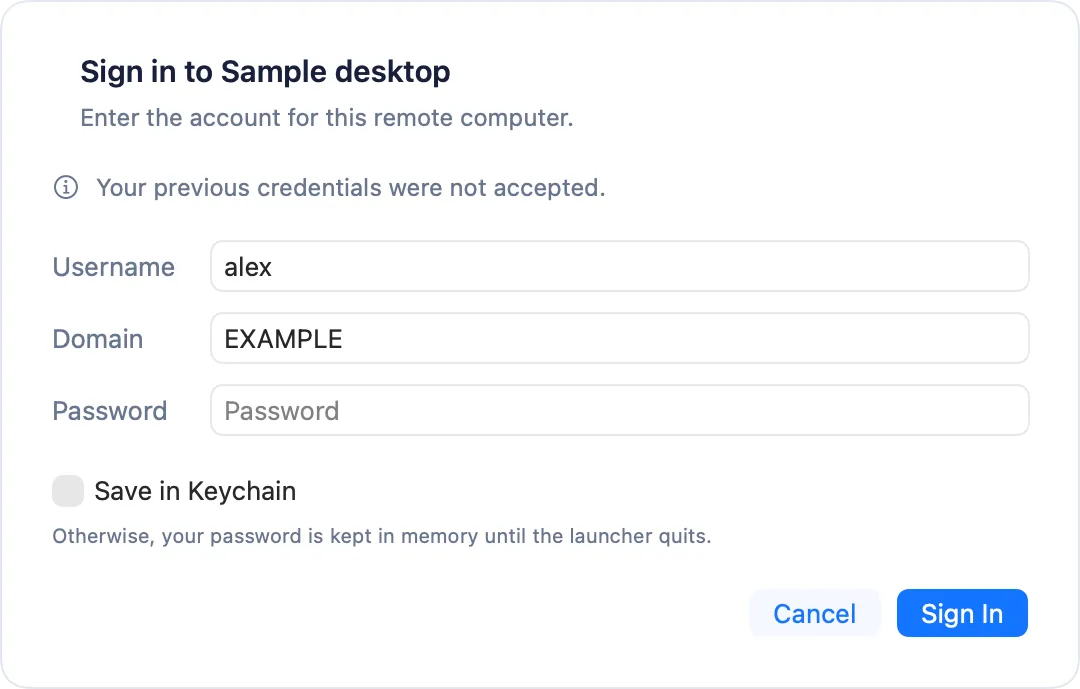
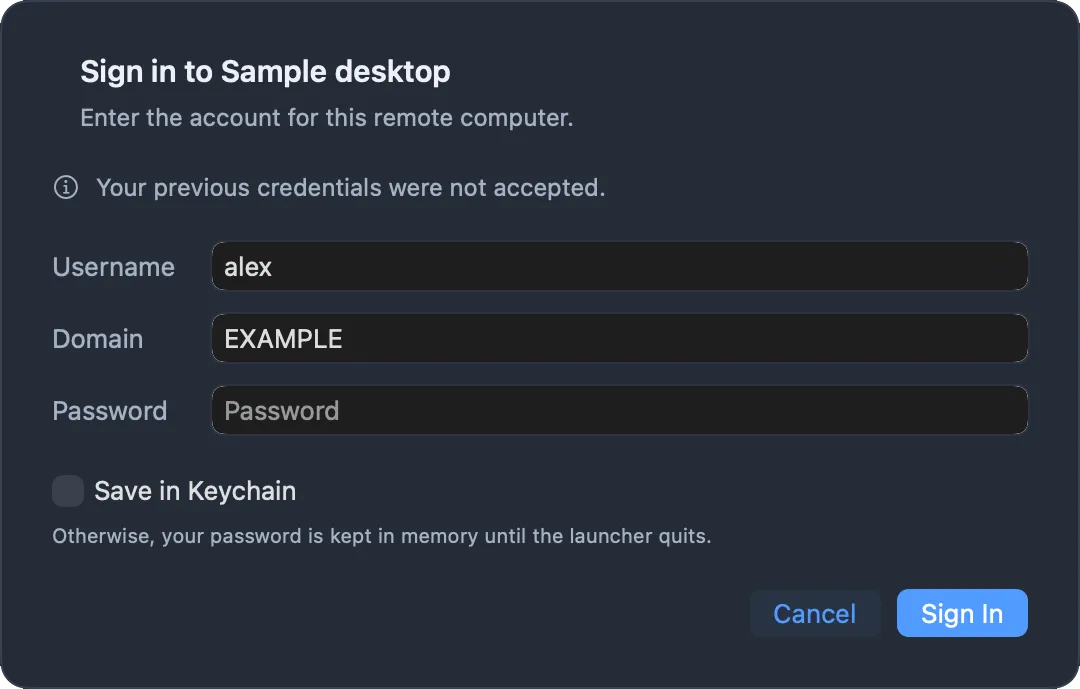
You can leave the username and domain blank on a connection. When Windows asks for credentials, Sheltie shows a native sign-in window where you enter your username, an optional domain and your password.
- Saved connections first try credentials already in memory or in your Keychain.
- Save in Keychain stores the password only after a successful connection.
- If you don’t save it, the password stays in memory until you quit the app.
- Quick Connect never uses Keychain.
Certificates
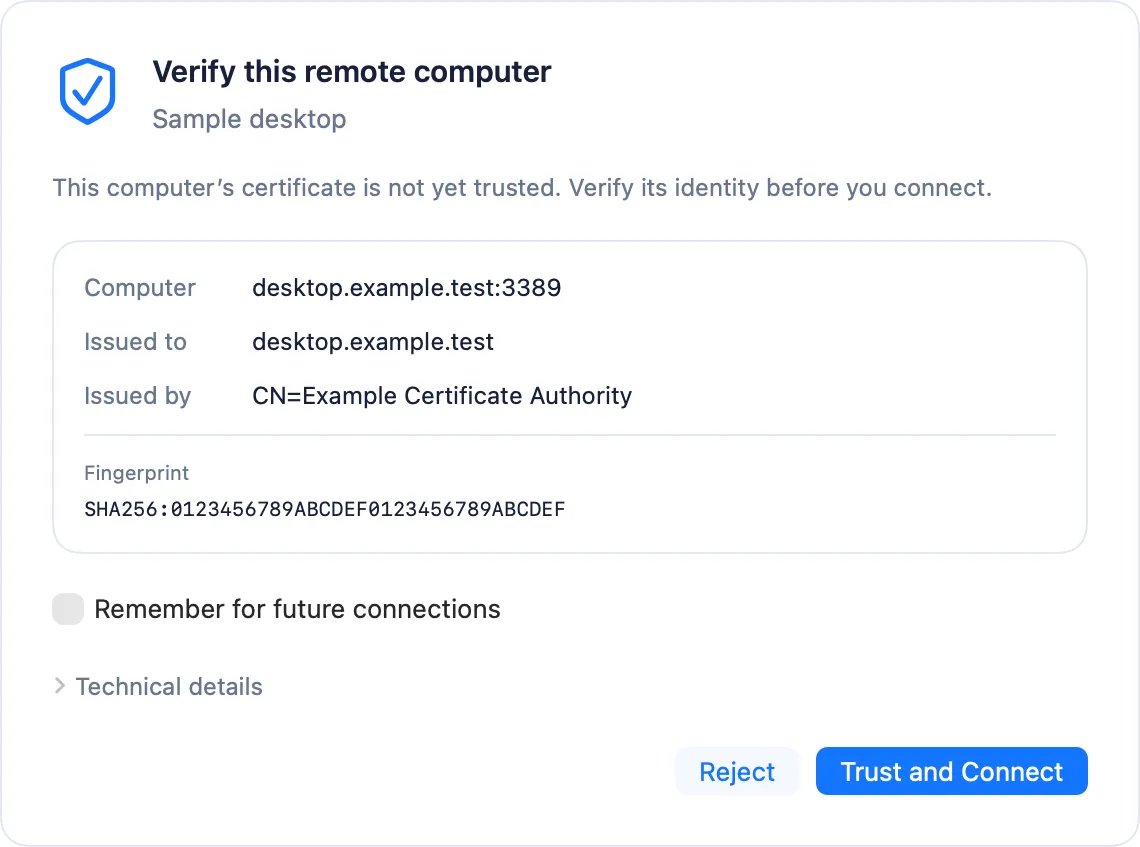
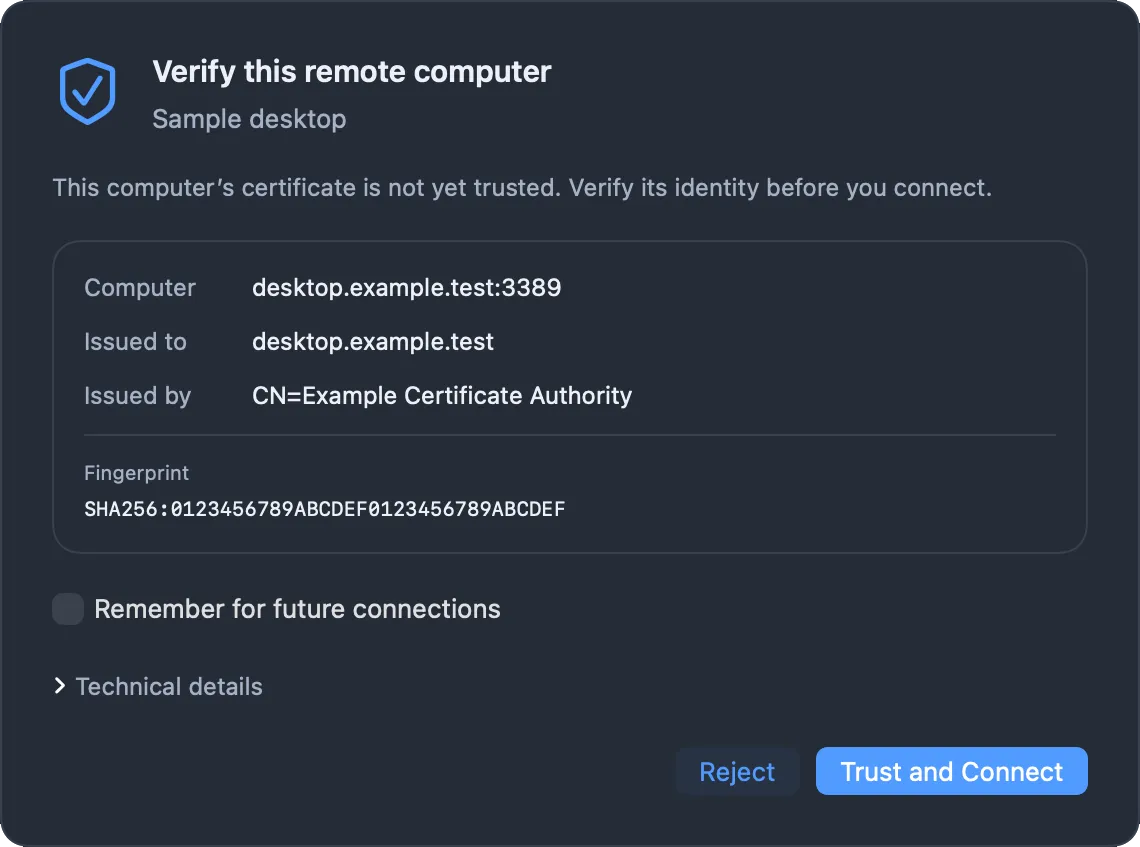
When a computer’s certificate isn’t trusted yet, Sheltie shows who it was issued to, who issued it and its fingerprint. Choose Trust and Connect or Reject. Tick Remember for future connections to skip the prompt next time. Sheltie also warns you if a remembered certificate changes.
What is never stored
- Passwords are never written to the connection file (
profiles.json) or passed on the command line. - Sign-in responses go to the engine over a private channel and are never written to Sheltie’s logs.
Standard clients
With a standard FreeRDP client, FreeRDP handles sign-in and certificate checks itself, and no passwords or Keychain items are passed to it. A saved username and domain are passed as ordinary /u: and /d: arguments. See Enhanced vs. standard mode.
Session logs
Session logging is off by default. If you turn it on, FreeRDP’s own console output can include server, account and session details, especially at DEBUG or TRACE level. Review logs before sharing them. Log files are readable only by your user account.